
The MediBio Health and Fitness Tracker is marketed as a budget-friendly wearable that tracks heart rate, steps, sleep, temperature, blood pressure, and oxygen levels. But users quickly discover that the device is difficult to set up, lacks a working official app, and often arrives with no charging cable or functional instructions.
Based on dozens of real user comments, this product is fundamentally flawed. It often arrives with no charging cable, lacks any real instructions, and cannot be reliably synced to a functioning app—making it impossible to use as intended. Many users reported broken units, language issues, or virus alerts when attempting to set it up.
This guide combines the original MediBio manual, online research, and independent user reviews to give you the most accurate, step-by-step instructions available.
What Is The Medibio Health And Fitness Tracker?
The Medibio Health and Fitness Tracker is a small electronic device called a smart band that’s worn on your wrist and designed to help you monitor health and fitness progress by using basic technology to count your steps and measure things like heart rate and blood pressure.
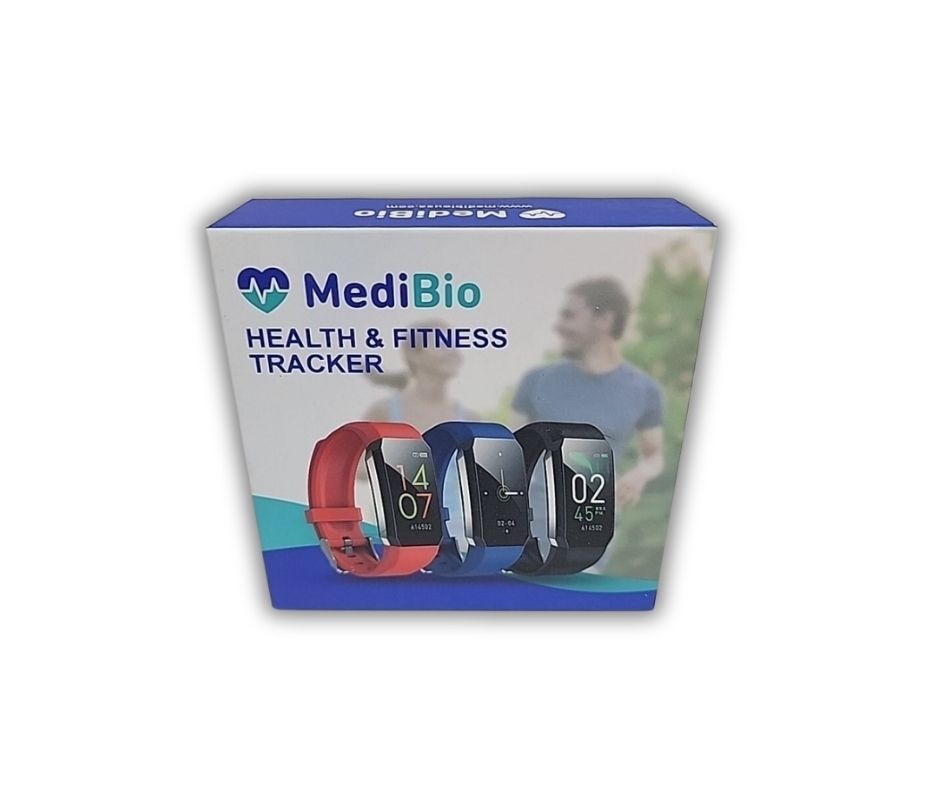
The data collected by the tracker is then sent wirelessly to an app on your smartphone or tablet where it can be analyzed in real-time. This allows you to track your progress over time and make adjustments as needed in order to reach your health and fitness goals.
User reality:
- Many users reported the official app doesn’t exist, is full of broken links, or prompts virus and subscription warnings.
- A few succeeded using the DayBand app instead—“synced and worked fine”.
- Source: irp.cdn-website.com+3youtube.com+3youtube.com+3.
If you want to learn more about the MediBio tracker, its background, its real user reviews, and a full breakdown of its issues, read our detailed article here: Medibio Health and Fitness Tracker Review 2025

What the band is meant to do
- Count daily steps and estimate distance
- Estimate calories burned
- Measure heart rate during the day or on demand
- Attempt basic blood pressure and blood oxygen readings
- Track nightly sleep
- Show time, date, battery and step count on the main screen
- Offer simple sport modes such as walking, running or cycling
- Vibrate for calls or messages when paired with an app
Important facts before you start
- The band is not a medical device and readings are not clinically validated.
- Time and date cannot be set on the wristband itself. They only update when the band is paired with an app and synced.
- Most units do not include a separate charging cable because the USB plug is built into the band.
Table of Contents
How To Use Medibio Health And Fitness Tracker
Use this section as a quick overview of daily operation. Later sections give detail for each step.
How To Use Medibio Health And Fitness Tracker Step-by-Step Instructions
1. Charge the smart band fully
Remove one side of the strap to reveal the USB plug.
Insert it into a USB port and wait until you see a battery icon.
2. Turn on the screen
After charging, tap the touch area at the bottom of the display.
3. Cycle through modes
Single tap to move between: time screen, steps, distance, calories, heart rate, blood pressure, blood oxygen, sport modes, sleep, and more.
4. Select and start functions
When you reach a mode you want to use, press and hold the touch area for 2 to 3 seconds.
For heart rate or blood pressure, stay still while the band measures.
5. Pair with an app
Install Wearfit 2.0 or DayBand on your phone.
Bind the band inside the app so that time, date and health data can sync.
6. Wear it correctly
Place the sensor side flat against the inside of your wrist.
Fasten snugly so it does not slide around, but not so tight that it is uncomfortable.
7. Check your daily stats
View quick numbers on the band.
Open the app to see steps, sleep and heart rate trends across days and weeks.
To use the MediBio Health and Fitness Tracker, start by removing one side of the wristband to expose the hidden USB charging prong—this is how the device powers on, as it has no physical power button. Plug it directly into a USB port to begin charging.
Once powered, pairing the device with a phone can be tricky, as the official app appears to be defunct or unsafe, with multiple users reporting virus warnings and broken download links. However, some users have successfully synced the tracker using the DayBand app on Android, which allows access to basic features like step counting, heart rate monitoring, and sleep tracking.
Setup instructions are not included in the box, and there is no official website or tech support available, so users must rely on trial and error. If you’re able to charge the device and connect it via DayBand, you can adjust settings like units and time through the app—though not all users have had success with this.
How To Charge A Medibio Health And Fitness Tracker
The most common problem users have is simply figuring out how to charge the tracker. Follow these instructions exactly.
Despite what the box suggests, the MediBio tracker does not require a cable.

Correct Charging Method
- Remove one strap
- Identify the charging side.
- Look at both ends of the band where the strap meets the body.
- On one side you will see a slightly looser joint. This side hides the USB plug.
- Remove one half of the strap
- Hold the tracker body firmly in one hand.
- With the other hand, pull the strap straight down and away from the body until it slides off. (Do not twist sharply to avoid breaking the plastic.)
- Expose the USB charging plug
- This is designed to plug directly into a USB port. No separate cable is needed.
- Insert directly into a USB port
- Laptop
- USB phone charger
- Power bank
- PC USB port
The metal charging pins must face upwards inside the USB slot.
- Charging indicator
- The screen should turn on and show a battery symbol or charging animation.
If nothing appears:
- Flip the device and reinsert
- Try a different charger
- Clean the metal contacts
- Make sure the correct strap was removed
- If it still doesn’t charge the tracker is defective — extremely common with this model.
- Leave it connected for at least 2 to 2.5 hours the first time.
User tip: If you store the band for a long time, give it a top up charge every three months so the battery does not die completely.
How To Turn On Medibio Health And Fitness Tracker
Generic online instructions sometimes talk about a power button on the side of the watch. The MediBio band does not have an external power button. It turns on automatically when it has enough charge.

To turn it on correctly:
- Charge the band until you see a battery icon on the display.
- Remove it from the USB port after it has charged.
- Tap the touch area at the bottom of the screen. (The tracker has no power button)
- A single tap wakes the screen.
- Repeated taps move between modes.
If the band does not respond to tapping even though you saw the battery icon earlier, reconnect it to USB for another 30 minutes and try again.
If the screen never lights up while connected to USB, the band is not receiving power and is most likely a dead unit.
Medibio Health And Fitness Tracker Set Up
Setup has three main parts:
- Charge and power on the tracker.
- Install a compatible app on your phone.
- Bind the tracker to the app so that time, date and data can sync.
Once these steps are complete, the band will display correct time and begin recording steps, sleep and other data in the background.

Medibio App Download
There is a lot of confusion around which app to use. Some packages mention an official Medibio app or include QR codes that lead to broken or unsafe links. You can safely ignore those.
For most MediBio smart bands, the best options are:
Wearfit 2.0

- General wellness app that supports many generic bands.
- Syncs steps, heart rate, sleep, blood pressure and oxygen readings.
- Updates the time and date on the band.
- Lets you turn on call and notification alerts.
Download Wearfit 2.0 only from official stores:
- Android: https://play.google.com/store/apps/details?id=com.wakeup.wearfit2
- iOS: https://apps.apple.com/app/wearfit-2-0/id1291710737
DayBand (Android only)

- Alternative app if Wearfit 2.0 does not connect.
- Some MediBio owners report more reliable syncing with this app.
Download DayBand from Google Play:
When you install either app, it will ask for permissions such as Bluetooth, Location (on Android), notifications and background activity. These allow the app to search for the band, keep the connection open and show alerts on your wrist.
If you are concerned about privacy, you can grant only the minimum permissions you are comfortable with, but connection and notifications may not work fully.
How to Connect Your Medibio Health And Fitness Tracker
Once the band is charged and an app is installed, follow this connection process carefully. Pair from inside the app, not from your phone’s Bluetooth menu first.
- Turn on Bluetooth on your phone
- On Android, also make sure Location is turned on because the system uses it during Bluetooth scanning.
- Open Wearfit 2.0 or DayBand
- Create an account or sign in if needed.
- Go to the device binding section
- In Wearfit 2.0 this is usually under the Device tab or under Profile → Add device.
- In DayBand it is under the Device section.
- Start scanning for devices
- Keep the band close to the phone, within about 20 to 30 centimeters.
- Wait while the app searches.
- Select the correct device
- It might appear as Smart Band, Bracelet, Y39 or another generic name.
- Tap the device name to start pairing.
- Confirm any pairing prompt
- Accept the Bluetooth pairing request when your phone asks.
- The app should show the device as connected.
- Wait for first sync
- Within a few seconds the correct time and date should appear on the band.
- The steps and health data fields in the app should start filling with numbers from the band.
If the band does not show up in the device list:
- Make sure the band has enough charge and the screen can turn on.
- Move away from other Bluetooth devices that might interfere.
- Close and reopen the app, then scan again.
- On Android, check that the app has Location permission, as this often blocks scanning if it is turned off.
- If the band still cannot be found after several attempts, it may not be supported by that app or may be faulty.
How to Set Time
Time and date cannot be adjusted directly on the MediBio band. There are no time setting menus on the watch itself.
To set the time correctly:
- Connect the band to Wearfit 2.0 or DayBand using the steps above.
- Once the device shows as connected, keep the app open on the main screen for a minute.
- The band reads the phone’s current time and date and updates automatically.
- If the time is still wrong after one minute:
- Pull down in the app to trigger a manual sync if that option exists.
- Disconnect and reconnect the band.
- Restart both the phone and the band (by plugging the band out of and back into the charger)
Whenever you move to a new time zone or correct the time on your phone, open the app again while the band is nearby. It will resync to match your phone.
Medibio Blood Pressure Monitor Instructions
The blood pressure feature on the MediBio tracker is intended only for casual wellness tracking. It does not replace a proper upper arm blood pressure monitor and is not approved as a medical diagnostic tool.
To use it as safely and accurately as possible:
- Wear the band correctly
- Place it about one finger width above your wrist bone on the inside of your arm.
- Fasten the strap so it is snug but not painfully tight.
- Sit still for a few minutes
- Rest your arm on a table at roughly heart level.
- Avoid talking, moving or crossing your legs during the reading.
- Start a blood pressure reading
- Tap through the screens on the band until you see the blood pressure symbol.
- Press and hold the touch area to begin measurement.
- Keep your wrist still until the numbers stop changing.
- Read the result
- The display will show two values, similar to 120 over 80.
- You can also open the app to see a history of previous readings if syncing works.
- Interpret with caution
- Use the readings only as a rough indication of trends.
- If the numbers look very high or very low, do not rely on the band. Check again with a validated home monitor or speak to a healthcare professional.
User tip: If the band repeatedly shows the same blood pressure results regardless of what you do, assume the readings are not accurate.
Medibio Health And Fitness Tracker Manual & Instructions
Use this section as a checklist of everyday functions and troubleshooting.
Daily use:
- Tap once to wake the screen.
- Tap repeatedly to move between time, steps, distance, calories, heart rate, blood pressure, blood oxygen, sport modes, sleep and settings icons.
- Press and hold on a screen to start a measurement or enter a mode.
- In sport mode, press and hold to start tracking and press again to pause or stop.
General tips and reality based advice:
- Always start by charging the band fully before trying to pair it.
- If the band stops syncing, unbind it inside the app and bind it again instead of only deleting the app.
- Remember that sudden changes to step count, heart rate or blood pressure may reflect sensor errors, loose fit or motion, not true health events.
- For long term tracking, focus on overall trends over weeks, not single readings.
- If you ever see suspicious download links, pop up ads or strange QR codes, ignore them and return to the official Wearfit 2.0 or DayBand links listed above.

Download the MediBio Health and Fitness Tracker Manual PDF here: MediBio Health and Fitness Tracker Manual PDF
If you would like a more in depth evaluation of whether this tracker is worth keeping, including alternative brands that offer stronger apps and support, you can read the full MediBio Health & Fitness Tracker Review
Reality-based tips:
- The manual isn’t clear enough: there is no power button—device powers on after charging.
- Charging requires partial removal of the band.
- No reliable official app—best success has been with DayBand on Android.
- Company support and website are defunct; manual links lead nowhere
Conclusion
The MediBio Health and Fitness Tracker is best understood as a very basic wellness gadget. It can work reasonably well for counting steps and giving rough estimates of sleep and heart rate, but it is not a medical device, and setup is more confusing than it should be.
To get the most out of it:
- Charge it correctly by exposing and using the built in USB plug.
- Accept that there is no physical power button and that charging is what turns it on.
- Use Wearfit 2.0, or DayBand on Android, as your main app and install them only from the official app stores.
- Pair the tracker from inside the app so that time, date and data can sync.
Treat heart rate, blood pressure and blood oxygen results as rough guides and always double check important readings with proper medical equipment.
If you find that your unit never charges, never shows in the app or constantly disconnects, it is reasonable to return it or switch to a better supported tracker. Established brands that work with serious platforms, including the clinical software built by Medibio Limited, will give you more reliable data and a far smoother experience over time.
Users appreciated the concept, but many describe it as poorly built, useless without an app, or full of manufacturer errors. Reality-check suggests most people see better results with established brands—Mi Band, Amazfit, Fitbit Inspire—especially if you value reliability, tech support, and app integration.


30 Responses
I need the app thank
I also need the app for the health &fitness tracker
Will not pair with phone….things are in Chinese on the app screen
Can’t find any help online. Seems like a waste of money!
EXACTLY!
A G R E E D !!!
There is no button anywhere to turn it on. There is no charging cable included, which I would need because I have never seen a connection like this before. Very disappointed; maybe I can get $1 for it in the garage sale.
Same thing happened for me: no charging cable included and no clue as to how to connect the charger to the device even if I had one. When downloading the app on my iPhone I received a warning about a virus, so I quickly deleted it. Unable to find information online. Waste of money and time at this point.
To charge it you have to pull the wrist band off and plug into a usb port.
A G R E E D !!!
This thing is a piece of junk! Finally got the band off to charge and it’s just two metal prongs. No indication what type of charger to connect it to.
Worthless!
There is no available app for the Medibio health&fitness tracker. There is a download link for an app on the current webpage, but the link page no longer exists. There are no instructions in the box for turning on or setting up the tracker. There are no instructions online (no website), no second party instructions, only complaints. I was finally able to remove the straps and charge the tracker, but cannot set the time, date, temperature (f or c) or any other settings.
The tracker is useless. NationsBenefits is trying to “sell” them for $55. Amazon is trying to sell them for $25. Called Nationsbenefits who said they will credit a refund, but basically said do not return, discard the unit. Apparently, they’ve had many complaints. Medibio tracker had potential, but is badly programmed, poorly marketed, lacking in instructions, and essentially a piece of junk. Caveat emptor… !
I downloaded the app thru Apple and when I tried to register for an account, a security alert appeared and was trying to force me to subscribe to some sort of protection. I deleted the app three times hoping it was a glitch. The instructions included are terrible and the dependence upon the app in order to set up the device makes this device useless. This one came from NationsBenefits so I will be contacting them for a resolution.
Exact same thing happened to me with regard to receiving the tracker from NationsBenefits.
A G R E E D !!!
I HAD THE EXACT SAME RESULTS FROM THE SAME PROVIDER!
How do I change the measurements from centimeters to inches and Celsius to Fahrenheit?
Can’t get the app Wearfit 2.0 to link Nor find any other app??
wearfit pro worked for me. im still using it.
I second or third the comments from people who say that they received this device with no charge (i.e., dead!) with no charger or any clearly visible way to connect such if there had been one. Does anyone monitor these comments? You will be hearing from me further!
mine came from nations benefits also. was broken when I received. will not charge.
This medibio tracker for your health
is a great idea for tracking your health but comes with very limited instructions on how to connect your device to your phone to begin. very frustrating.
Mine also came from Nations Benefits and trying to take the band off, the charge portion BROKE off to unable to even charge… not sure I want it now due to all the comments above about the app on the phone etc. etc. etc… the MediBio number given in the manual goes straight to Nations Benefits… So I called and left a message about the problem and expect to get a call from them… purchased 2 for $55 each… Now afraid to even open the other one… NOT HAPPY
Don’t waste your money. This has to be the most user hostile piece of electronics I’ve ever owned. Won’t pair to phone, occasional screen info in Chinese or Japanese or language that uses other than letters. Website does not exist, goes to a GoDaddy site. Removing the straps to charge was like trying to take a bone from a pit bull. So very disappointed that I used my OTC benefit to “purchase” this piece of shit. Will try to get a refund, but I’m not holding my breath.
And here it is April 2025 and I’m having the same results as other users from 2024!!!
No one cares! Especially Nations Benefits who keeps selling them $55!
this sucks.. not worth the money. Impossible to set up
Not satisfied with this product at all. Very disappointed, it did not come with charge station.
You can use the Dayband app. the watch is outdated so the original application won’t work. I downloaded the Dayband app. from Google and it synced and worked fine with the app. Here is a link to what I’m using> https://play.google.com/store/apps/details?id=com.yc.dayband&hl=en_US Also to charge the watch just turn it over and pull band off on the side where the watch says USB underneath on the back of the watch. Then plug the usb in to charge.
“No sleep record” can anyone give advice on how to correct?
This tracker is virtually worthless because it won’t hold a charge longer than a few hours. I got it from Nations Benefits and am surprised that they continue to include it in their health care line. It should definitely be removed and replaced with a reliable tracker.
This is useless. 1- It doesn’t come with a charger, and it doesn’t even give info on what type of charger to buy to use it. If the description had said it didn’t come with a charger, I would not have purchased it. 2- I used health insurance monthly benefits to buy it. So now I cannot even return it. 3- There are similar items that are less expensive on Amazon.
Now, there is not even a way to contact the company to ask about a charger. This was a complete waste of my insurance benefits.
I cannot find or load DayBand Smart Wear app.
I get this message:
“This app is not available for your device because it was made for an older version of android.”
but box says for android 4.4 or new. mine is android 16.
soi can’t install app.
I see nowhere to update the app. So I can install it either, and there is no way to contact manufacturer to find out what to do. watch a rip off. $55 wasted from my Medicare advantage account.
need help….